

Picture this: it's a busy Tuesday morning, your team is processing orders, sending follow-up emails, and updating client records through your automated workflow system. Then the internet goes down. Suddenly, everything stops. Leads go uncaptured, invoices don't send, and inventory updates pile up with nowhere to go. For small businesses and freelancers who depend on cloud-based automation tools, a dropped connection isn't just an inconvenience — it's a direct hit to productivity and revenue. Building a custom offline automation workflow changes that equation entirely.
Table of Contents
- What you need to get started
- Map your workflow and requirements
- Step-by-step: Building and self-hosting your offline workflow
- Testing and verifying offline resilience
- Why most small companies miss the hidden pitfalls in workflow automation
- Take your business further with offline-ready automation
- Frequently asked questions
Key Takeaways
| Point | Details |
|---|---|
| Offline automation matters | Building offline-capable workflows ensures your business stays productive, even during internet outages. |
| Choose right tools | Consider local-first platforms like Dagu or self-hosted n8n for maximum offline reliability and control. |
| Plan for sync and safety | Use intent queues and idempotency to prevent duplicate records when reconnecting after being offline. |
| Test real-world scenarios | Always verify your workflow’s offline resilience by simulating outages and re-sync conditions before launch. |
What you need to get started
With the problem established, let's look at what you'll need to build a reliable offline automation workflow.
The first decision you'll face is choosing between a local-first tool and a SaaS automation platform. SaaS platforms like Zapier and Make are popular because they're fast to set up and require no server management. But they have a critical weakness: they require an active internet connection to function. When comparing automation platforms, the tradeoff becomes clear. A local-first or self-hosted tool runs on your own machine or server, meaning your workflows execute regardless of whether your internet is up or down.
Here's a quick comparison to help you decide:
| Feature | SaaS (Zapier, Make) | Self-hosted (Dagu, n8n, Flowise) |
|---|---|---|
| Works offline | No | Yes |
| Monthly cost | Subscription | One-time or free |
| Setup complexity | Low | Medium to high |
| Data stays local | No | Yes |
| Custom logic depth | Limited | Extensive |
| Maintenance required | None | Yes (backups, updates) |
When choosing between SaaS platforms like Zapier and Make, key practical differences for small companies include cost predictability and how each platform handles workflow complexity over time. SaaS wins on convenience but loses on control and offline capability.
For offline-ready tools, three platforms stand out:
- Dagu: A self-contained binary that runs as a local-first workflow engine, making it practical for offline or air-gapped environments without relying on external managed services.
- n8n (self-hosted): A powerful visual automation tool you install on your own server. It supports complex logic, webhooks, and hundreds of integrations.
- Flowise: An AI-focused workflow builder you can deploy locally with a visual canvas for building logic chains.
Before you install anything, make sure you have these essentials in place:
- A reliable backup strategy (automated daily snapshots of your workflow data)
- A monitoring setup to alert you when workflows fail silently
- Postgres and Redis if you're running n8n in queue mode for production workloads
Pro Tip: If you're new to self-hosting, start with Dagu. It runs as a single binary with no database dependency out of the box, which means setup takes minutes rather than hours. You can add complexity later once your core workflows are proven.
When self-hosting n8n, you must treat reliability and security as part of the workflow mechanics itself. Backups, monitoring, and queue mode using Postgres and Redis are explicitly required for any production-grade self-hosted setup. Skipping these steps is the most common reason self-hosted automation systems fail unexpectedly.
Map your workflow and requirements
Now that you have your tools sorted, it's time to plan the exact workflow that will power your automation.
Jumping straight into building without a clear map is one of the most expensive mistakes a small team can make. You end up with fragile workflows that break under real conditions and are nearly impossible to debug. Spend time here, and everything downstream gets easier.
Start by identifying which business tasks absolutely must continue during an internet outage. Common examples include:
- Capturing and storing incoming sales leads from a local form
- Updating inventory counts when items are sold at a physical location
- Logging time entries or job completions for invoicing later
- Queuing outbound emails or notifications to send once reconnected
- Saving new client data to a local database for later sync
Once you know your critical tasks, map out the trigger (what starts the workflow), the action (what the workflow does), and the outcome (what the end result should be). This three-part structure keeps your logic clean and testable.
Here's an example workflow map for a small service business:
| Trigger | Action | Outcome |
|---|---|---|
| New lead form submitted | Save to local SQLite database | Lead stored offline, queued for CRM sync |
| Job marked complete | Generate invoice record | Invoice ready to send when online |
| Inventory item sold | Decrement stock count locally | Stock level updated, low-stock alert queued |
| Payment received | Log to local ledger | Payment recorded, receipt queued for email |
The most critical concept to understand at this stage is idempotency. This means designing your workflow so that running the same action twice produces the same result as running it once. Without idempotency, reconnecting after an outage can trigger duplicate records, double-sent emails, or repeated charges.
For offline-first workflow design, the robust pattern is local-first writes combined with an outbound durable queue that includes retries, exponential backoff, and idempotency keys. This prevents duplicate automation triggers after reconnection, which is one of the most damaging bugs in disconnected systems.
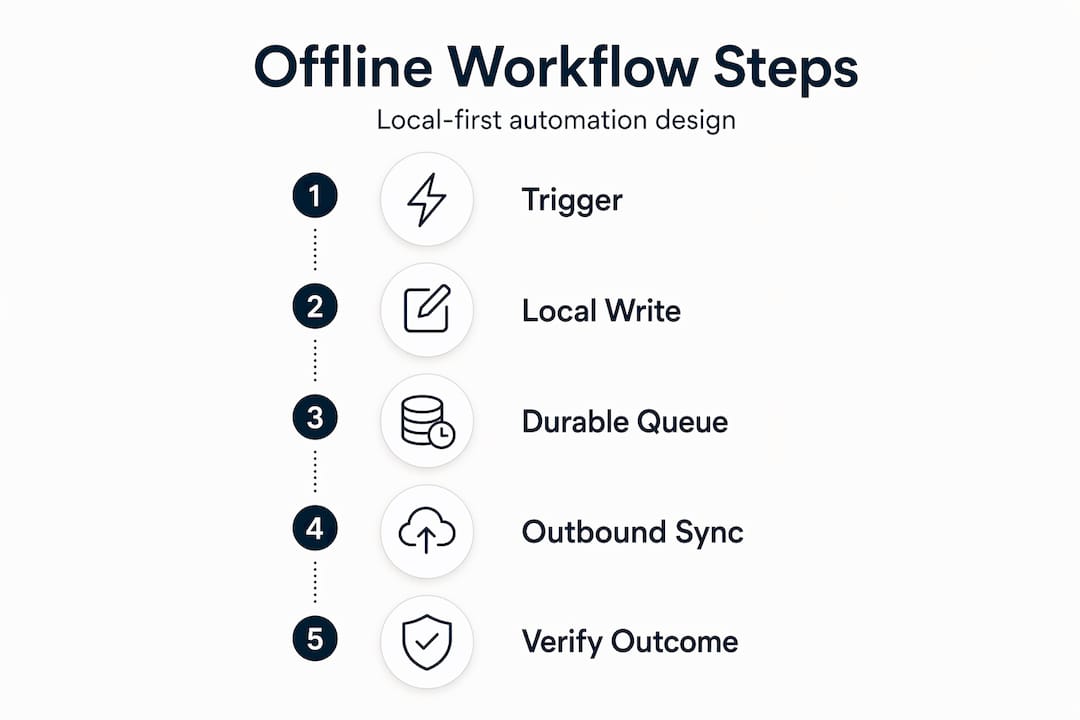
It's also worth noting a contrasting viewpoint: the safest approach for disconnected use is to implement local-first and sync semantics deliberately rather than relying on a simple offline cache. A basic offline cache sounds simple, but under real-world conditions like partial syncs or conflicting edits, it can corrupt your data silently. Deliberate design is not optional here.
When choosing workflow software for your specific business, match the tool to the complexity of your logic. Simple sequential tasks fit Dagu well. Complex branching logic with many integrations fits n8n better.
Step-by-step: Building and self-hosting your offline workflow
Your workflow map is in hand — here's how to bring it to life in a real offline-capable environment.
Follow these steps to go from zero to a running offline automation system:
-
Choose and install your workflow engine. Download Dagu as a single binary or install n8n via Docker on your local machine or a small VPS. For AI-assisted workflows, Flowise is deployable with a local workflow canvas and full self-hosting capability, keeping all orchestration on your own hardware.
-
Define your first workflow. Start with your single most painful manual task. In Dagu, you define workflows as YAML files. In n8n, you use a visual node editor. Map your trigger, action, and outcome from your planning stage directly into the tool's interface.
-
Build your local queue. This is the offline backbone. Configure your workflow to write actions to a local queue (a simple SQLite table or Redis list) when the primary destination is unavailable. The queue holds the intent until connectivity returns.
-
Test your offline queue deliberately. Disconnect your machine from the internet. Trigger your workflow manually. Verify that the action is captured in your local queue and not silently dropped.
-
Set up monitoring and alerting. Use a lightweight tool like Healthchecks.io or a simple cron-based script to ping your workflow engine and alert you if it stops responding. Silent failures are the enemy of reliable automation.
-
Configure automated backups. Schedule daily exports of your workflow definitions and data. For n8n, this means backing up your Postgres database. For Dagu, back up your YAML files and any local SQLite databases your workflows write to.
-
Harden your security. Restrict access to your workflow engine's web interface. Use strong passwords or API keys. If you expose webhooks to the internet, use HTTPS and verify incoming request signatures.
"Treat your self-hosted workflow system like a small piece of infrastructure, not just a script. It needs the same care as any production system: backups, monitoring, and documented recovery steps."
One subtle but critical issue to watch for in self-hosted workflow engines is command-line parameter handling. With Dagu specifically, a known edge case involves starting workflows without the required "--" separator before positional parameters. The result is silently ignored parameters, meaning your workflow runs but with wrong or missing inputs and no error message. Always test parameter passing explicitly.
Pro Tip: Build desktop workflow automation around the smallest possible unit of work. Each workflow step should do one thing and log its result. This makes debugging dramatically faster when something goes wrong at 2 AM.

Testing and verifying offline resilience
Once you've built your setup, make sure it's truly ready for offline scenarios by verifying its performance under stress.
Testing is where most small teams cut corners, and it's exactly where offline workflows earn their reliability. A workflow that works perfectly online but fails silently during an outage is worse than no automation at all, because you won't know what you missed.
Follow this verification sequence:
-
Simulate a full connection loss. Disable your network adapter or use your operating system's firewall to block outbound traffic. Trigger every workflow in your system and confirm each one writes its intent to the local queue without throwing an unhandled error.
-
Verify queue integrity. Open your local queue storage and confirm every triggered action is present, correctly formatted, and includes an idempotency key. The idempotency key is typically a unique ID generated at the moment the action is created, not when it's delivered.
-
Restore connectivity and watch the sync. Re-enable your network connection and observe your queue processor. Each queued action should attempt delivery in order, with exponential backoff on failures. Check your destination systems (CRM, email service, database) for the expected records.
-
Check for duplicates. This is the critical test. Trigger the same workflow action twice while offline, then reconnect. Your idempotency logic should ensure only one record appears in the destination system. If you see duplicates, your idempotency key generation or checking logic has a bug.
-
Run a health check audit. Verify that your monitoring system correctly detected the simulated outage and sent an alert. If it didn't, your monitoring is broken and needs fixing before you rely on it in production.
Key stat to keep in mind: Offline-first expert guidance consistently emphasizes treating disconnected workflow actions as intent that must be reliably enqueued and delivered later. Idempotency isn't optional — it's the mechanism that makes retries safe and prevents downstream effects like duplicate record creation or repeated notifications.
Pro Tip: Schedule a quarterly "outage drill" where you intentionally disconnect your automation system for 30 minutes during a low-traffic period. This keeps your team practiced at recognizing and responding to automation failures before they happen in a crisis.
Why most small companies miss the hidden pitfalls in workflow automation
After testing, it's important to reflect on the less obvious but critical challenges small companies typically run into.
We've helped a lot of small businesses set up custom automation, and the pattern is almost always the same. The initial build goes smoothly. The first few weeks feel great. Then, three months later, something breaks quietly and nobody notices for days. Here's what's actually happening.
Most small teams dramatically underestimate the operational overhead of self-hosted systems. Installing n8n takes an afternoon. Keeping it running reliably for two years requires a completely different mindset. You need to patch it when security updates drop, restore it from backup when the server hiccups, and investigate when a workflow silently stops firing. None of this is hard, but all of it requires discipline and documentation.
The second pitfall is misunderstood edge cases. Idempotency sounds simple until you realize your team has three different places in the codebase that generate "unique" IDs using timestamps, and two of them can collide under load. Duplicate triggers and silent workflow errors are the bugs that cost real money because they're invisible until a client complains about a double charge or a missing follow-up.
The third pitfall is the most avoidable: automating before you understand your own business logic. We've seen teams spend weeks building a workflow that automates a process nobody fully understood in the first place. The automation just makes the confusion faster. Map your logic on paper first. Get every team member who touches the process to walk through it step by step. Only then should you touch a workflow editor.
The platform selection decision matters more than most teams realize. If you need quick, low-maintenance integrations, a SaaS platform may win on time-to-value. But if you need deep custom logic, air-gapped operation, or stronger control over where your data lives, local-first engines like Dagu or self-hosted n8n fit better. The catch is that they require genuine operational diligence: backups, monitoring, and secure webhook handling.
Our honest advice: start with one workflow that solves your single biggest manual pain point. Get it running reliably for 60 days. Then add the next one. Slow and steady automation that actually works beats an ambitious system that breaks constantly.
The teams that succeed with offline automation are the ones who treat it like desktop software for reliability, not like a weekend project. They document their setup, test their backups, and build incrementally.
Take your business further with offline-ready automation
Ready to upgrade your workflow? Here's one solution that lines up perfectly with what you've learned.
Building offline automation is one piece of the puzzle. The other piece is making sure the software your business runs on every day is just as resilient. If your automation queues an invoice but your invoicing tool requires a cloud login to function, you're still exposed.
Grit Software's desktop solutions are built for exactly this scenario. Every product is purchased once and owned permanently, with no subscription fees, no cloud dependencies, and no data leaving your machine. OwnInvoice, the flagship desktop invoicing tool, lets you manage quotes, invoices, payments, and client records entirely offline. It fits naturally alongside the local-first automation workflows covered in this guide. Beyond software, Grit Software also provides custom automation workflow development, IT support, and website design for small businesses that want tailored solutions without the SaaS lock-in.
Frequently asked questions
What is the biggest risk when building an offline automation workflow?
Without deliberate queue management and idempotency, you risk creating duplicate records and missed automations when your system reconnects after an outage. This is the most common and most damaging failure mode in disconnected workflow systems.
Which platforms are best for fully offline automation?
Dagu and self-hosted versions of n8n or Flowise are strong choices because they support local-first execution and run entirely on your own hardware without requiring external managed services.
What are common mistakes in self-hosted workflow systems?
Failing to implement regular backups, health monitoring, and secure parameter handling often leads to preventable downtime and data loss that could have been avoided with basic operational discipline.
How is local-first automation different from just working offline?
Local-first design means your device is the source of truth and syncs safely later, while basic offline tools may break or silently corrupt data when they attempt to sync after reconnection.